
Corrections are made on the website, in the meeting's transcript. Every change is saved at once.
On the website
- Step 1:
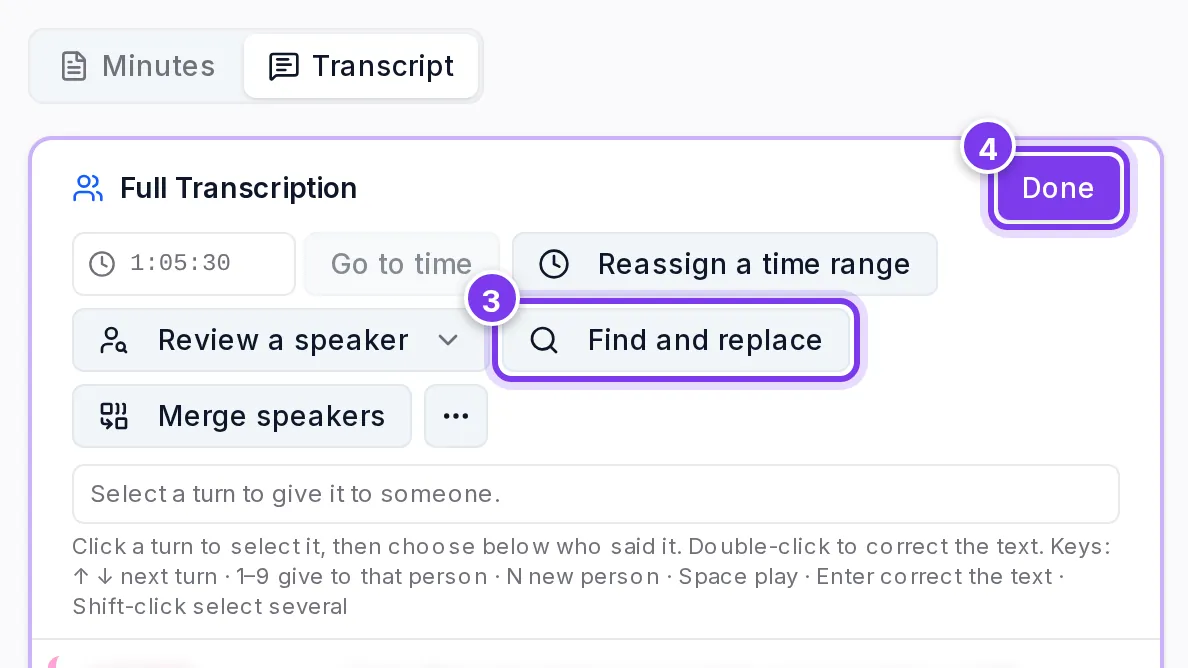
Open the meeting, switch to Transcript and click Correct transcript.
- Step 2:
One place: click the turn, fix the text and click Save.
- Step 3:
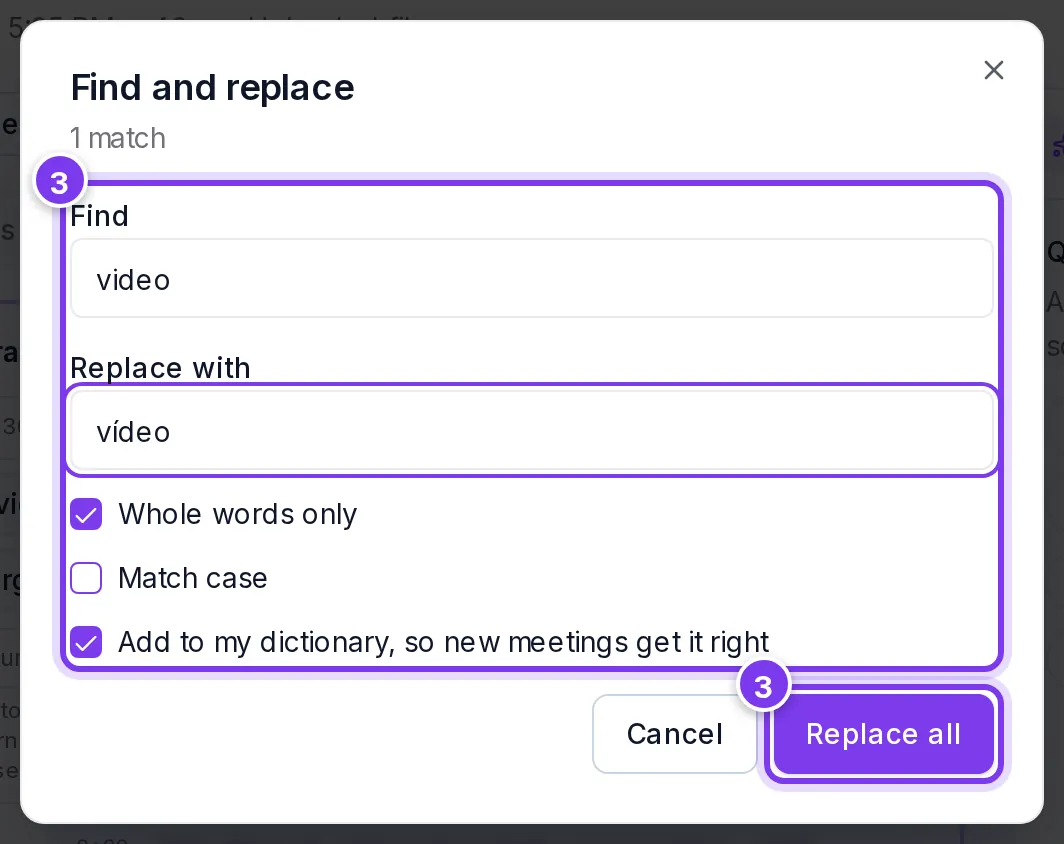
The same word everywhere: click Find and replace, fill in Find and Replace with, then click Replace all. Tick Add to my dictionary, so new meetings get it right and new meetings spell it right too.
- Step 4:
Click Done when you are finished.
- Step 5:
The minutes then show The transcript was changed after these minutes were written. Click Write the minutes again to write them again from the corrected text.
To undo every correction made by hand, open More (⋯) in the editor and choose Restore original. The same menu has Apply my dictionary, which corrects this meeting with the names and terms of your dictionary.
In the mobile app
Correcting the transcript text is on the website only. Open the meeting at www.minutesmaster.ai, on a computer or in your phone's browser.
Good to know
- Restore original drops every correction at once; single changes can't be undone one by one.
- If the meeting was translated before you corrected it, translate it again so the translation follows the corrected text.
- You need permission to edit the meeting (your own meetings, or a team meeting you may edit).
Questions and answers
- Does correcting the transcript cost credits?
No. Correcting the transcript and writing the minutes again are free.
- How do I stop a name from being misheard in every meeting?
Add it to your dictionary (Dictionary in the menu), or tick Add to my dictionary, so new meetings get it right when you replace it. New meetings recognise it, and the forms it was misheard as are corrected.
- Will the minutes change by themselves?
No. The minutes stay as they are until you click Write the minutes again. You can also keep them with Keep these minutes.
Checked against the product on 23 November 2026